How to Take Orders Without Immediate Payment on Squarespace
Squarespace is designed as a "point-of-sale" platform, meaning it usually requires a credit card or PayPal payment to finalize a checkout. However, many businesses—such as wholesalers, service providers, or those offering "Cash on Delivery"—need to accept orders and invoice the customer later.
Since there is no native "Pay by Invoice" button, you must use one of the following workarounds.
Method 1: The "100% Discount" Workaround
This is the fastest way to use the existing checkout system without requiring a credit card. You create a discount code that reduces the cart total to zero.
How to set it up:
Go to Marketing > Discounts.
Create a code (e.g., "INVOICEME").
Set the promotion to "Amount Off" or "Percentage Off" and make it 100%.
At checkout, the customer enters the code. If the total is $0.00, Squarespace typically bypasses the credit card entry field.
The Pros: It keeps your inventory in sync and provides a standard order number. The Cons: * Automated emails will say the order was "Free" or "Saved 100%," which can look unprofessional.
It does not work for subscriptions or digital memberships (which always require a card on file).
Customers must still pay for shipping/taxes unless you also create a "Free Shipping" discount.
Method 2: The "Quote Request" Form (Recommended)
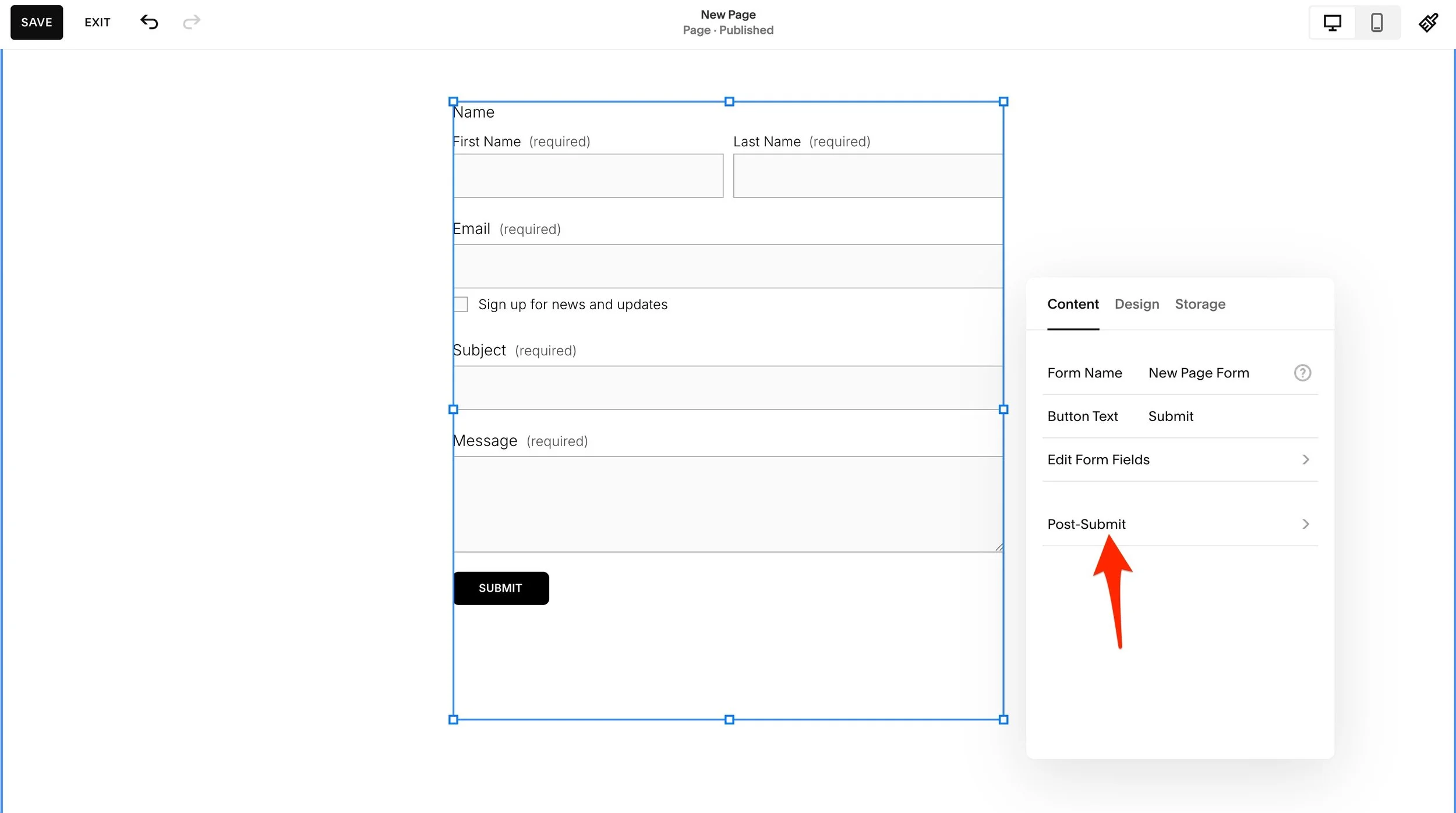
If you want to avoid the "store" checkout entirely, you can use a Form Block. This is the most professional-looking option for B2B or custom work.
How to set it up:
Create a standard page and list your products using Image Blocks or Summary Blocks.
Instead of an "Add to Cart" button, add a Button Block labeled "Request a Quote" or "Place Order."
Link that button to a Form Block on a hidden page or a lightbox.
Customize the form to collect the items they want, their shipping address, and contact info.
The Pros: No confusing "Free" labels at checkout. You can review the order before sending a manual invoice via PayPal, Stripe, or Quickbooks. The Cons: It does not automatically update your Squarespace inventory levels.
Method 3: Using Squarespace Scheduling (Acuity)
If you are selling services or time-based bookings rather than physical goods, Squarespace’s built-in Scheduling tool is the best solution.
How to set it up:
Go to Scheduling.
In the settings for your Appointment Type, look for Payment Requirements.
Select "Refuse payment, but collect credit card" or "Payment is optional."
The Pros: Allows users to "book" a slot and you can charge them in person or send an invoice later.
Method 4: Third-Party Plugins
If you have a high volume of orders and must use the standard Store page, you can use a third-party "Wishlist" or "Quote" plugin. These scripts effectively replace the "Add to Cart" button with a "Submit for Quote" button, bypassing the payment processor entirely and emailing you the cart contents instead.
Summary: Which should you choose?
Use Method 1 (Discount Code) if you have a low volume of orders and want to keep your inventory synced automatically.
Use Method 2 (Form Block) if you are a wholesaler or service provider and want a professional "Request a Quote" experience.
Use Method 3 (Scheduling) if you are selling appointments or consultations.