How to Redirect a Squarespace Form to Another Page After a Successful Form Submission (No Code Required)
If you want to send your visitors to a custom "Thank You" page, a digital download, or an external URL after they submit a form, you don't need custom code or complex workarounds. Squarespace has a built-in feature that allows you to set up a post-submit redirect in just a few clicks.
Redirecting users after a form submission is an excellent way to track conversions, deliver lead magnets, or simply provide a more branded experience for your potential clients.
Here is the step-by-step guide on how to set up a Squarespace form redirect.
How to Set Up a Post-Submit Redirect on Squarespace
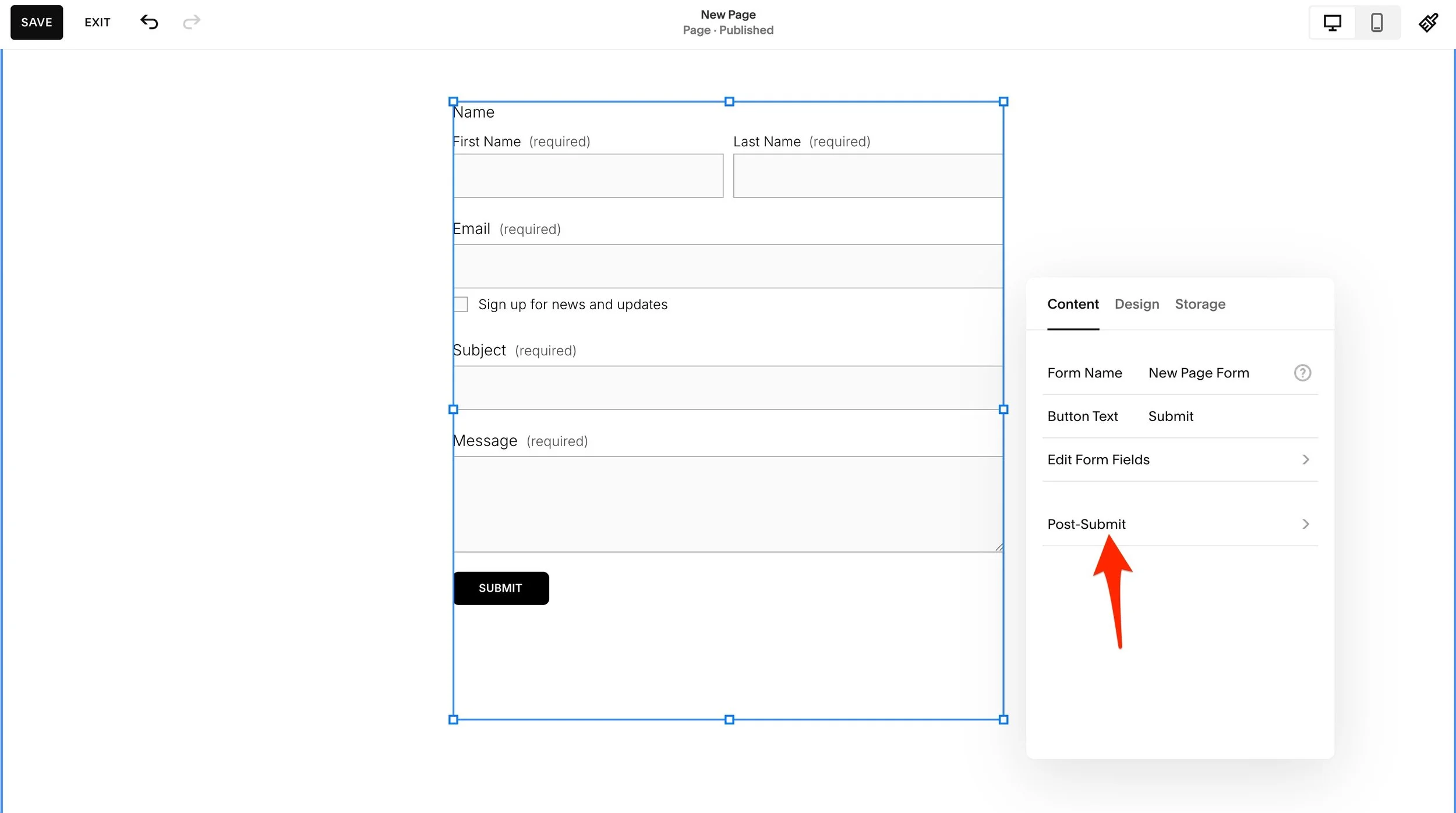
To redirect a form block to another page or file, follow these steps:
Enter the Page Editor: Log in to your Squarespace site and navigate to the page containing your form. Click Edit in the top-left corner.
Open Form Settings: Find the Form Block you wish to edit and double-click it (or click the pencil icon) to open the Content settings panel.
Navigate to Post-Submit: In the Content tab of the Form Block settings, scroll down and click on the Post-Submit menu option.
Select Redirect: By default, the form is set to show a "Message." Click the Redirect button to toggle the redirect settings.
Attach Your Link: Click the Attach Link field. A settings gear icon will appear, allowing you to choose where to send the user:
Page: Select an existing page on your website.
Web Address: Paste an external URL.
File: Redirect users to a PDF or file download.
Save Your Changes: Click Save in the top-left corner of the page editor to apply the changes.
Why Use a Form Redirect Instead of a Success Message?
While a simple "Thank You!" message works for basic contact forms, using a redirect offers several professional advantages:
Conversion Tracking: If you use Google Analytics or Meta Pixel, redirecting to a specific "Success Page" makes it much easier to track exactly how many people completed your form.
Delivering Lead Magnets: If your form is a sign-up for a free resource, you can redirect the user directly to the PDF file or a hidden download page.
Next Steps: You can redirect users to a booking calendar (like Acuity Scheduling) or a "Recommended Reading" page to keep them engaged with your content.
Frequently Asked Questions
Do I need a Business or Commerce plan for this?
No. The post-submit redirect is a standard feature of the Squarespace Form Block and is available on all current Squarespace plans, including Personal plans.
Can I redirect to an external website?
Yes. In the "Attach Link" settings, you can select the "Web Address" tab and paste any URL, such as a secondary site or a social media profile.
Can I redirect to a file?
Yes. This is a great way to offer a "Content Upgrade." Simply select "File" in the link editor and upload the document you want the user to receive upon submission.
