How to Connect Your GoDaddy Domain to Squarespace

This guide explains how to link a GoDaddy domain to Squarespace using the DNS Connect method. Unlike the "Nameserver" method, this approach keeps your existing third-party services (like Microsoft 365 or Google Workspace email) active and avoids downtime.
Total Time: 5–10 minutes.
Propagation: ~1 hour.
Key Requirement: GoDaddy login credentials.
A Step-by-Step Guide to Going Live Safely
Connecting your domain is the final step to launching your new website! We recommend using the DNS Records method. This ensures your website connects to Squarespace while keeping your existing services—like professional email—running smoothly without interruption.
Before You Begin
Ensure you have your GoDaddy login credentials handy.
Keep your email inbox open, as GoDaddy may send a verification code for security.
Step 1: Access the Domain Settings
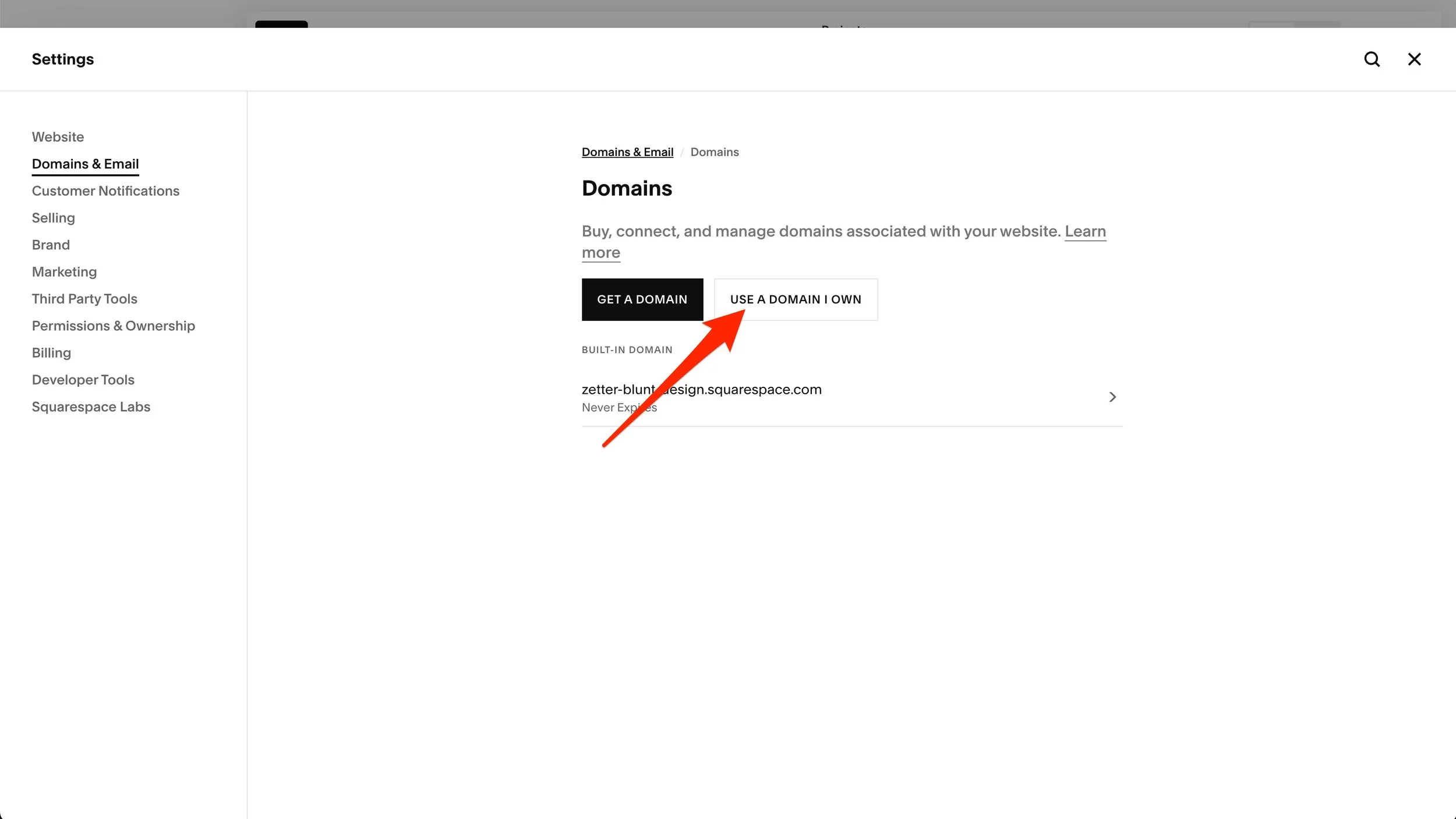
Log into your Squarespace site and navigate to the Domains panel. You can use this direct link: https://[YOUR-SITE-ID].squarespace.com/config/settings/domains-email/domains
Step 2: Enter Your Domain
Click the button labeled Use a Domain I Own. In the text field, type your domain name (e.g., zetterbluntdesign.com). You do not need to include "https://" or "www."
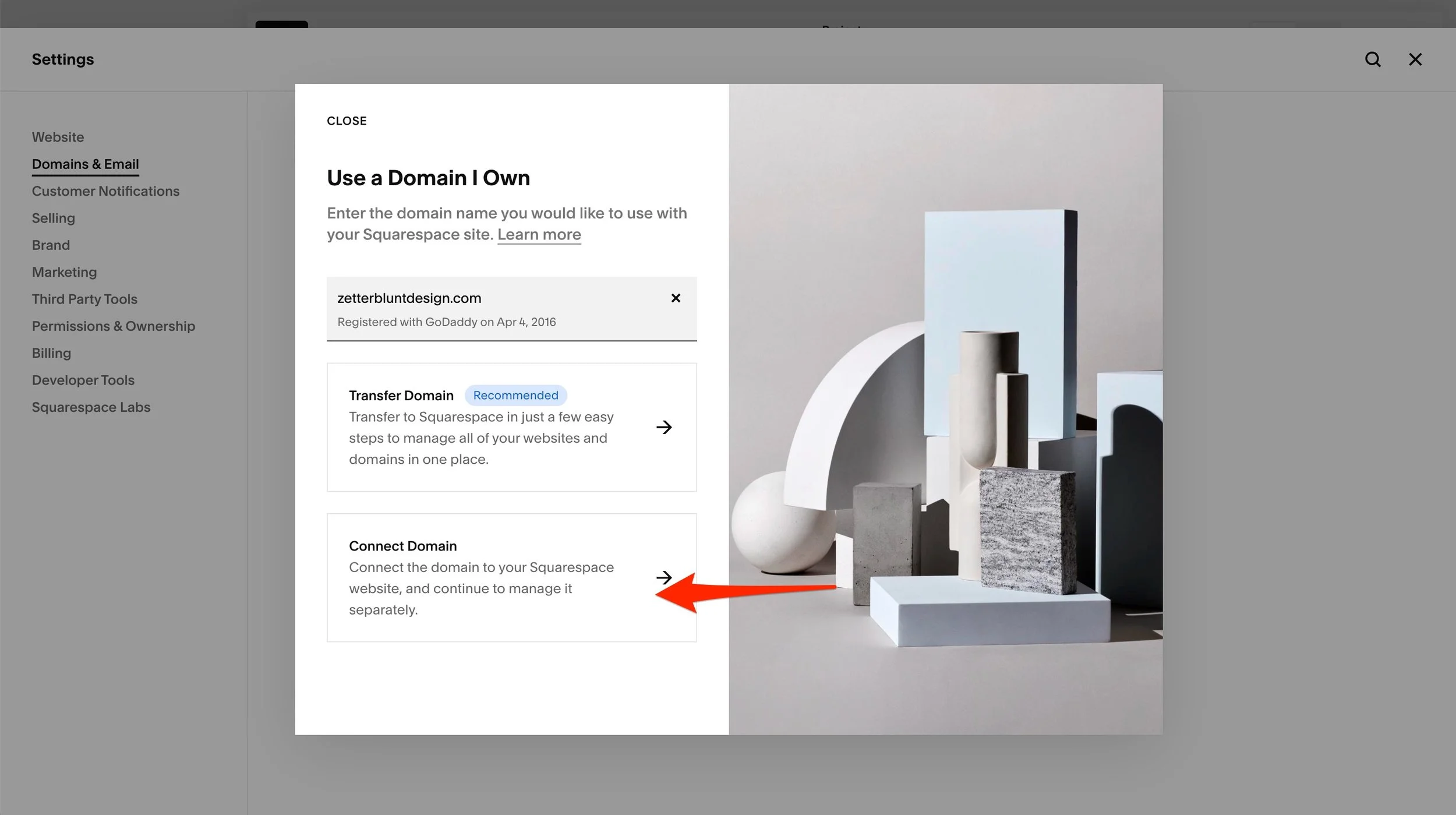
Step 3: Choose "Connect," Not Transfer
You will be presented with two options. Select Connect Domain.
Note: We want to "Connect" so that your domain registration stays with GoDaddy, while "Transfer" would move the billing and management to Squarespace.
Step 4: Select "No, Use DNS Records"
Squarespace will try to push you toward a "Nameserver" connection. This is the most important step: Click the button that says No, Use DNS Records.
By choosing DNS records, we avoid "resetting" your domain settings, which protects any existing email accounts associated with your domain.

Step 5: Authorize the Connection
Squarespace will detect that your provider is GoDaddy. Click Connect Domain. A GoDaddy login window will pop up:
Log in to your GoDaddy account.
Follow the prompts to Authorize or Connect the domain.
Click Connect one last time when prompted by Squarespace.
What to Expect Next
Once finished, your domain status will change to "Connecting" or "In Progress."
Propagation Time: It typically takes about an hour, though in rare cases it can take up to 48 hours for the connection to fully "settle" across the internet.
Privacy Warnings: If you visit your site immediately, you might see a "Your connection is not private" warning. Don't worry! This is just Squarespace generating your security (SSL) certificate. It will disappear automatically once the connection is finalized.
Congratulations! Your site is officially heading live.
